
Black Friday Janitor Save File Location & Recovery Guide 2026
Find the Black Friday Janitor save file location on Windows and Steam Deck, back up saves, fix cloud-sync conflicts, and recover moved files.
If you are looking for the Black Friday Janitor save file location, start by protecting the files you already have. The current Windows path is documented in Steam’s cloud-save configuration, and a Proton user has also reported a case where older progress appeared to disappear after the game began reading from a new cloud folder. Close the game, copy every candidate save folder somewhere safe, then compare timestamps before testing a restore. The sections below cover Windows, Steam Deck/Proton, Steam Cloud conflicts, backups, and that post-launch migration case.
Updated September 27, 2026 · Current game version: v1.0.5. The Windows cloud-save path comes from Steam’s published app configuration. The Proton recovery example comes from a user report and should be treated as a troubleshooting case, not a universal migration rule.
Table of contents
- Where is the Black Friday Janitor save file location on Windows?
- What changed when Steam Cloud was enabled?
- How do you recover a save that appears to be missing?
- Where are saves stored on Steam Deck and Proton?
- How do you avoid Steam Cloud overwriting the wrong save?
- How should you back up your save before troubleshooting?
- Which recovery path should you use?
- Sources and further reading
Where is the Black Friday Janitor save file location on Windows?
The current Windows save folder is:
%LOCALAPPDATA%\BlackFridayJanitor\Saved\SaveGames\cloudSteamDB’s published User File System configuration for app 3396010 lists WinAppDataLocal as the root, BlackFridayJanitor\Saved\SaveGames\cloud as the path, and *.sav as the cloud-save pattern.
Fastest way to open it
- Exit Black Friday Janitor.
- Press Win + R.
- Paste
%LOCALAPPDATA%\BlackFridayJanitor\Saved\SaveGames\cloud. - Press Enter.
- Copy the whole folder somewhere safe before changing anything.
On a typical Windows account, the expanded path looks like this:
C:\Users\<your-user-name>\AppData\Local\BlackFridayJanitor\Saved\SaveGames\cloud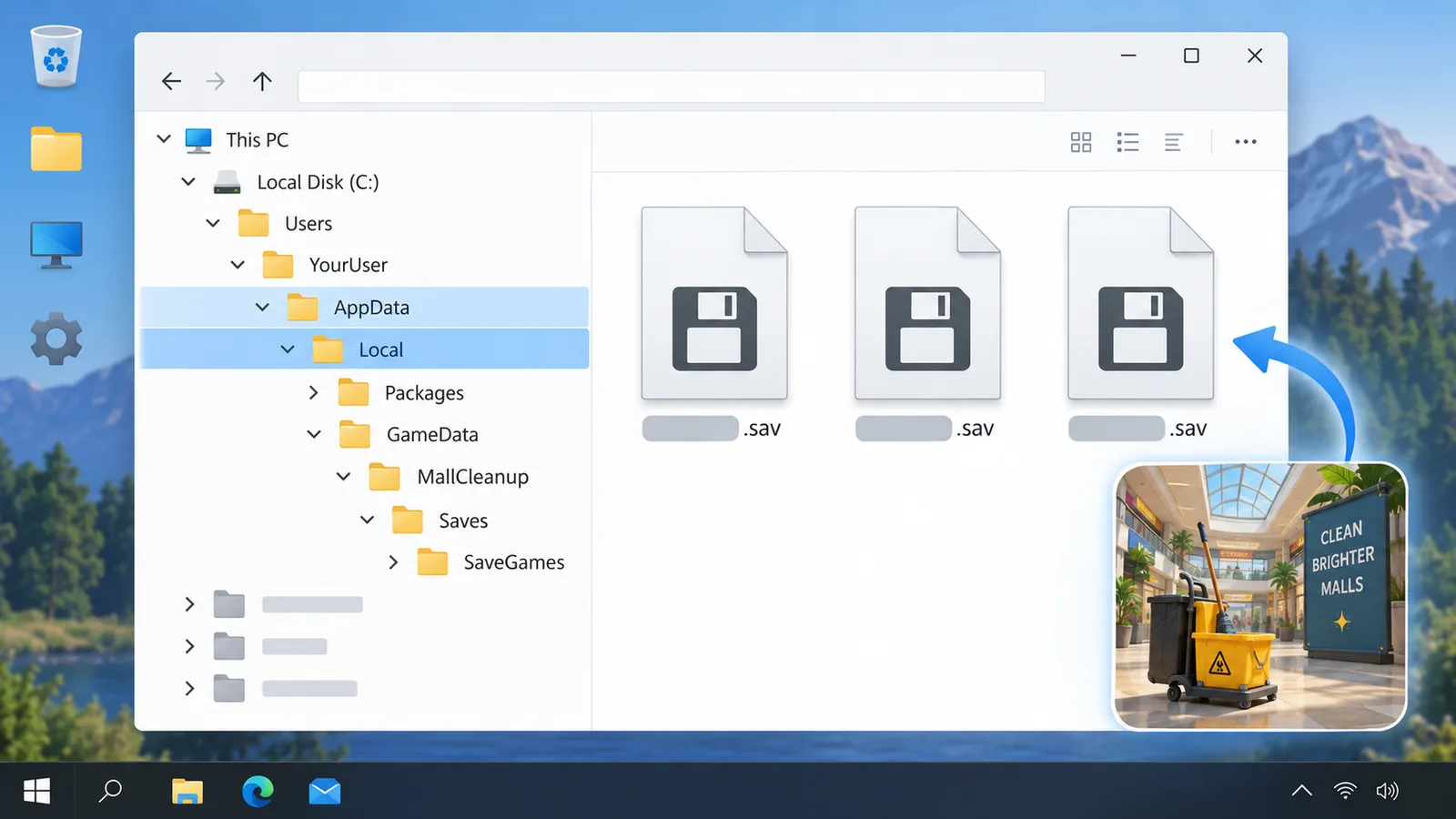
AI-generated editorial illustration of the folder concept. It is not a screenshot of Windows or the game.
If you want to move the same run between a PC and handheld, the Black Friday Janitor Steam Deck guide covers controller support, Verified status, and cross-device play.
What changed when Steam Cloud was enabled?
The developer announced Steam Cloud support on September 11, 2026, shortly after launch. Steam now lists Steam Cloud among the game’s supported features, and Steam’s app configuration points cloud-managed Windows saves at the SaveGames\cloud directory shown above.
An older local save can still exist after the current build starts reading from a different folder. A ProtonDB user reported that pattern after the cloud-save update: their progress first appeared lost, but the old save files were still in the earlier location and could be copied into the new cloud folder.
The sources establish different parts of the problem:
| Evidence | What it confirms | What it does not confirm |
|---|---|---|
| Developer Steam announcement | Cloud saves were enabled on September 11 | Why every individual save conflict happens |
| Steam/SteamDB app configuration | Current Windows cloud path and *.sav pattern |
Your personal file timestamps or which copy is newest |
| ProtonDB user report | One real migration-style recovery worked on Proton | That every Windows/Deck missing-save case uses the same old folder |
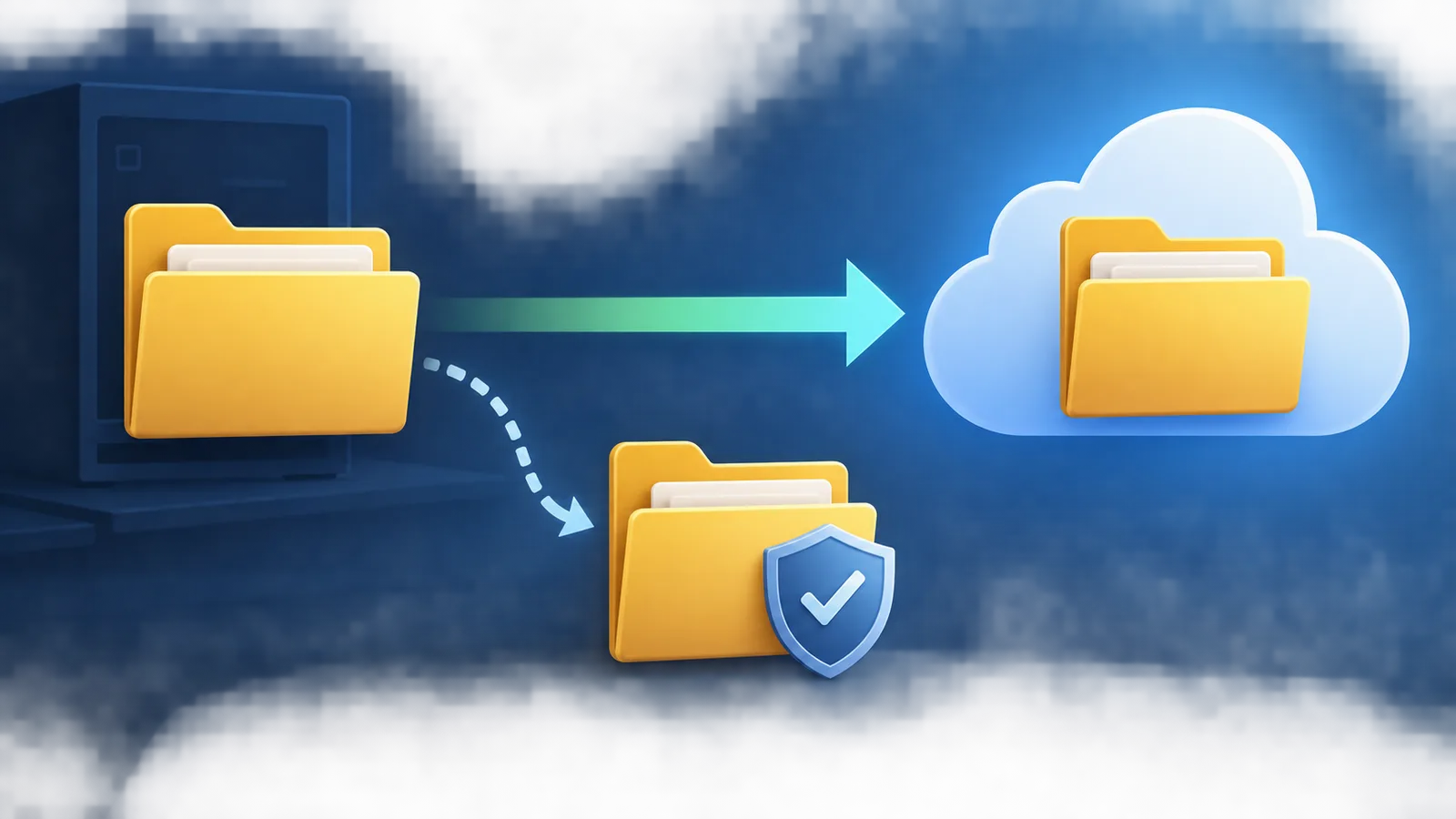
AI-generated concept illustration of a save-folder migration. It does not reproduce Steam’s interface.
Steam and SteamDB document the current configuration. ProtonDB provides a single recovery example. Treat the latter as a troubleshooting lead rather than a rule for every missing-save case.
How do you recover a save that appears to be missing?
Start by making backups. Keep both the new and old folders until you know which save contains the progress you want.
Step 1: close the game and Steam completely
Exit Black Friday Janitor, then exit Steam so neither process is writing to save files while you inspect them.
Step 2: back up the current cloud folder
Copy this folder somewhere outside the game directory:
%LOCALAPPDATA%\BlackFridayJanitor\Saved\SaveGames\cloudGive the backup a name you will recognize later, for example bfj-save-backup-before-recovery. The game does not use this backup name.
Step 3: search for older .sav files
Look for other Black Friday Janitor save folders or older .sav files on the same machine. On Proton/Steam Deck, also inspect the older Steam userdata location described in the next section if it exists.
Compare modified times and file sizes. A save written after a long session will usually have a later timestamp than one from before that session, though the timestamp alone cannot tell you whether it contains the game state you want.
Step 4: copy, do not move
If you identify an older candidate that contains the progress you want, copy it into a separate test backup first. Then copy the candidate into the current cloud folder while Steam remains closed.
Keep the source copy intact until you have loaded the mall and confirmed the restored progress.
Step 5: launch and verify the actual game state
Start Steam and read any cloud-conflict prompt carefully. After launching Black Friday Janitor, check concrete progress you remember, such as completed stores, task totals, ability progress, or a location you had already cleaned.
AI-generated editorial illustration of a successful recovery check. It is not an in-game screenshot or operating-system interface.
If the save loads but your run is stuck on an incomplete location, use the missing tasks and hard-to-find items guide instead of continuing to edit save folders.
Where are saves stored on Steam Deck and Proton?
On Steam Deck, Black Friday Janitor runs through Proton. The top-level Steam library path depends on whether the game is installed on internal storage, a microSD card, or another library, so the full absolute path can differ from one Deck to another.
Use the app ID and Proton prefix to find the right directory:
steamapps/compatdata/3396010/pfx/drive_c/users/steamuser/From there, search for:
BlackFridayJanitor/Saved/SaveGames/cloudOne ProtonDB report documented a new cloud-save location ending in:
.../steamapps/compatdata/3396010/pfx/drive_c/users/steamuser/Local Settings/Application Data/BlackFridayJanitor/Saved/SaveGames/cloudThe same user reported their older save under:
~/.local/share/Steam/userdata/0/3396010/acThat old path comes from one Proton report. It is not an official location that every Deck will have. If the directory does not exist on your system, there is no reason to create it.

AI-generated editorial illustration of cross-device cloud synchronization. It is not an in-game or Steam screenshot.
For handheld-specific compatibility details, see the Steam Deck Verified setup guide. If you are troubleshooting crashes rather than missing progress, the v1.0.5 patch guide covers the latest mall-loading stability change.
How do you avoid Steam Cloud overwriting the wrong save?
Check both copies before launching the game when Steam reports a conflict. If the PC and Deck each have a plausible save, choosing one immediately can replace progress you still need.
Before switching from PC to Steam Deck
- Exit the game normally on PC.
- Wait for Steam to finish synchronization.
- Make sure the Deck is online before launching.
- If Steam shows a conflict, compare the displayed timestamps rather than clicking through automatically.
Before switching from Steam Deck to PC
The same applies in reverse. A Deck that was offline may have newer progress that has not uploaded yet.
If Steam reports a conflict
Back up the local folders on both devices first, then compare:
- which device you played most recently;
- the last-modified time of the
.savfiles; - whether one device was offline during the last session;
- whether the game had time to finish syncing after exit.
The 100% walkthrough gives you useful in-game checkpoints to verify after a restore: store completion, area completion, task counts, and endgame progress.
How should you back up your save before troubleshooting?
For this kind of troubleshooting, keep one untouched copy outside the live save directory and make it while both the game and Steam are closed.
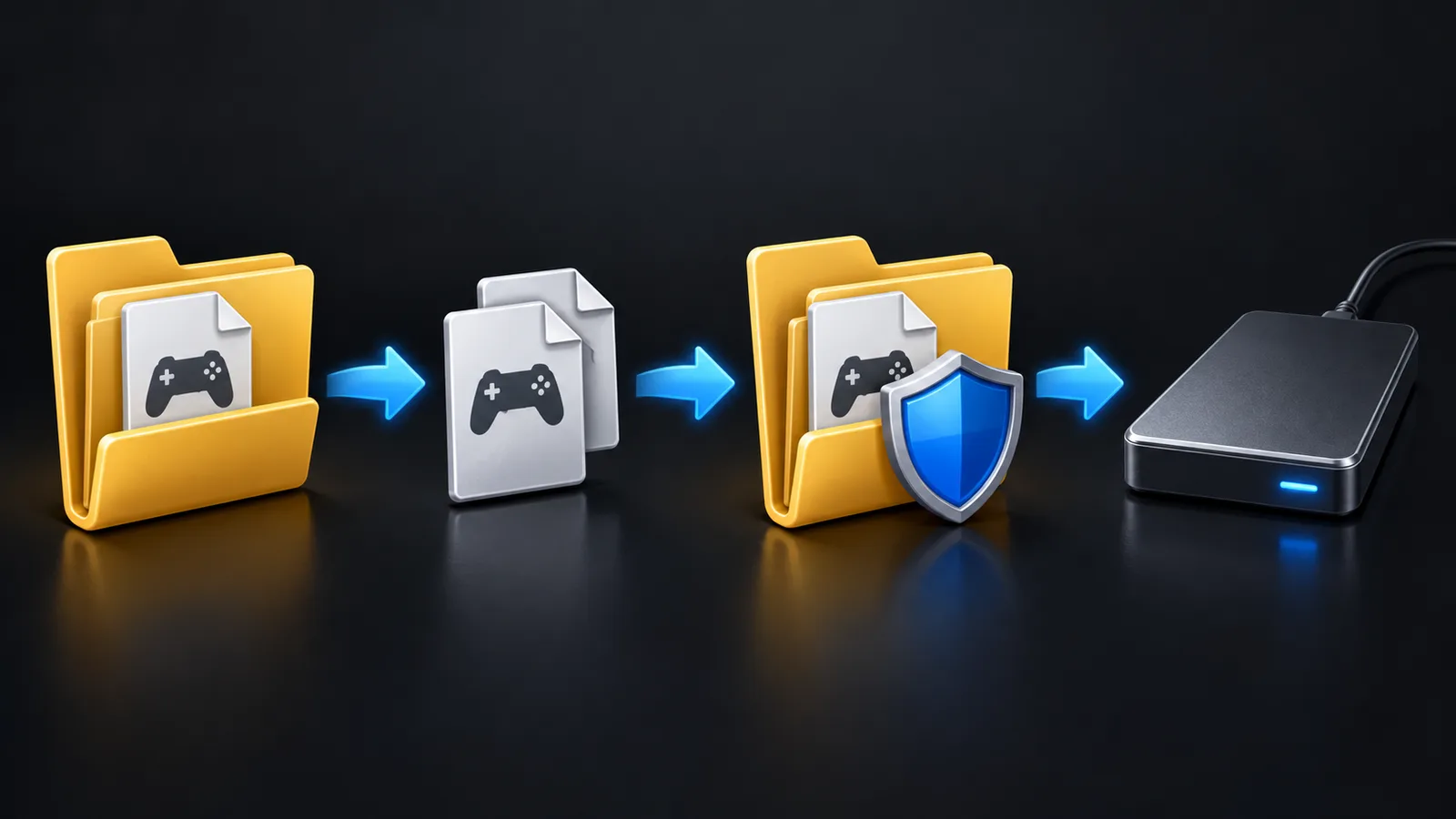
AI-generated symbol-only backup workflow. The icons represent a copy-first process, not game UI.
Use this sequence:
- Exit the game and Steam so the save is not being written while you copy it.
- Copy the whole folder instead of picking individual files.
- Put the backup outside the live save directory, such as on the Desktop, another drive, or in a separate archive.
- Leave the source folder untouched while you test copies.
- Open the game and confirm the expected progress before treating the recovery as finished.
If you are still early in the run and mainly want to avoid losing time again, the beginner guide gives you a cleaner store-by-store progression loop to pair with regular backups.
Which recovery path should you use?
Match the recovery step to the symptom you are seeing.
| Symptom | Best first action | Why |
|---|---|---|
| Windows game loads a fresh/older state | Back up %LOCALAPPDATA% cloud folder, then search for older .sav files |
Current Windows path is known |
| Deck/Proton save vanished after cloud support | Back up current Proton cloud folder, then inspect older userdata locations if present | Matches the documented community migration case |
| Steam shows a cloud conflict | Back up both local copies and compare timestamps before choosing | Prevents an irreversible guess |
| Save is present but a store remains incomplete | Stop touching save files and troubleshoot the in-game task | Different problem entirely |
| Game crashes while loading the mall | Use the v1.0.5 stability guidance | Save migration is not the first suspect |
Keep every candidate copy until you have verified the recovered game state. This prevents an empty or older cloud save from replacing the only file that still contains the progress you want.
What should you read next?
- Use the Steam Deck guide for Verified status, controller support, and cross-device play.
- Check the v1.0.5 patch guide if your problem is a mall-loading crash rather than a missing save.
- Follow the 100% walkthrough to verify recovered completion progress.
- Open the missing tasks guide when the save is healthy but a counter will not finish.
Find the live cloud folder, copy its contents before changing anything, and verify the recovered run in game before deleting older saves. That leaves you a way back if Steam Cloud and the local files disagree.
Sources and further reading
FAQ
Where is the Black Friday Janitor save file location on Windows?
Does Black Friday Janitor support Steam Cloud?
Why did my Black Friday Janitor save look like it disappeared?
Where are Black Friday Janitor saves on Steam Deck?
How should I back up a Black Friday Janitor save?
Related Articles
guides
Black Friday Janitor Steam Deck Guide — Verified Setup 2026
Black Friday Janitor is Steam Deck Verified. Check controller support, default performance, cloud saves, and the external-controller caveat.
guides
Black Friday Janitor Achievement Not Unlocking: Fixes 2026
Fix Black Friday Janitor achievement problems in 2026 by checking task milestones, store completion, game version, and the 30K/full-mall difference.
guides
Black Friday Janitor Gather Not Working: Fixes for 2026
Fix Black Friday Janitor Gather problems in 2026: check range, full inventory, store boundaries, and current v1.0.5 behavior.
Was this helpful?
Thanks for the feedback!